Edit a Cycling Video with GpxOverlay in iMovie
Goal: Show your speed, power, heart rate & map on screen, then place and resize each widget so the action (and the data) fill the frame.
18 July 2026 update: Each widget is now its own video — no cropping needed. Sync metadata is a separate clip too, so you can toggle it on or off easily.
Read about new rendering solution →
1. Generate Your Transparent Overlay in GpxOverlay
Upload your ride's GPX file and the raw video, select the timeframe to render on a chart (or let auto-sync match time-codes).
x The selected timeframe of your activity is crucial to synchronize the overlay with your video later!
Pick the widgets you need—speed gauge, cadence, elevation, distance. All the supported widgets can be found here: all widgets
The most convenient format to export is the video overlay. You get a separate .mov file (with transparency) for each widget, plus a separate metadata video for syncing.
You can find the full tutorial here: Getting Started
🚨 Remember: When you preview the video in your system, it may seem empty. But when you import it into your video editor, it'll work fine.
2. Import Assets into iMovie
File ▶ Import Media → bring in the cycling clip and every overlay .mov generated by GpxOverlay (one per widget, plus the metadata clip if you need it for sync).
Drag the ride video to the timeline and drop each widget overlay above the video.
3. Working with Multiple Widgets
Each widget arrives as its own video, so you can stack them on separate tracks and place them independently — no duplicating a shared overlay or cutting widgets out of one frame.
Keep the metadata video on its own track while you sync, then mute or remove it before export if you do not want it in the final cut.
🚨 NOTE: There are also plans to arrange widgets on a canvas directly in GpxOverlay. Monitor the changelog for updates. Changelog
4. Resize & Position the Overlay
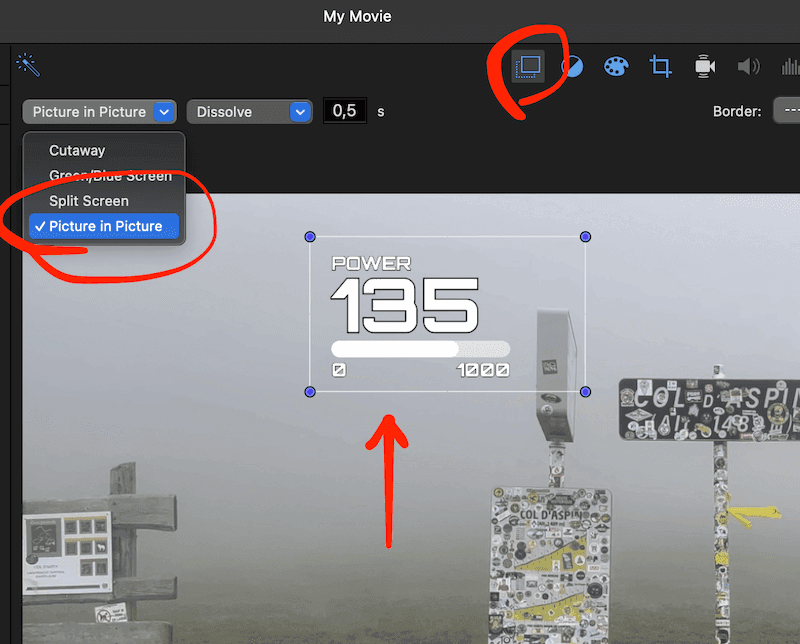
It's possible to scale a widget in iMovie by using Picture-in-Picture feature:
Select the clip with the widget you want to scale and/or relocate, click the Video Overlay Settings button (two stacked squares), open the drop-down and pick Picture in Picture.
Grab the overlay's corner handles in the viewer to resize; drag to the desired spot.
5. Sync Overlay & Footage
If you selected a proper timeline while generating overlays in GpxOverlay, it should be enough to simply align the widget clips with your video.
You can also use the separate metadata video to compare times and sync — turn that clip on while aligning, then off when you are done.
If you see a watch or bike computer in the video, you can use its time.
For automatic synchronization, check this article: Synchronization tutorial.
6. Export Your Final Video
Once you're satisfied with the overlay placement and synchronization, export your video through File ▶ Share ▶ File. Choose your preferred quality settings and format based on your target platform (YouTube, Instagram Reels, TikTok, etc.).
iMovie will render the final video with the overlays creating a professional-looking cycling video with integrated data displays.