How to fix a GPX activity path
Urban canyons and tree cover can bend your GPS line. gpx.studio is a free web app that lets you manually remove or add points before uploading the GPX to GpxOverlay. Example: your watch jumped onto a nearby highway for 50 meters—delete those points and re-route along the sidewalk.
Manual activity path fix in gpx.studio
- Open the tool: Visit gpx.studio in your browser.
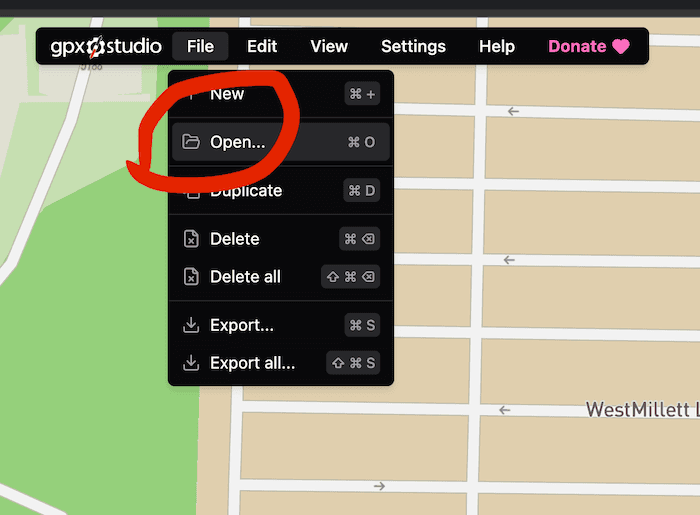
- Load your file: Click Open → File and select the GPX you want to fix.
- Fix obvious errors: Select the Edit tool, click a bad point, and drag it back to the road or trail. Use Delete (trash icon) to remove wrong jumps or loops; use Add point if you need to fill a missing corner.
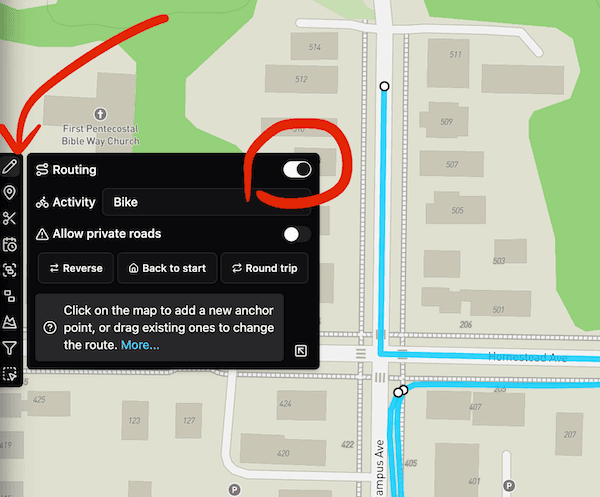
- Fill gaps with routing: Turn on Routing and click between two points to redraw a missing section. Choose Car, Bike, Walk, or Water so it follows the correct surface where the activity happened.
- Export the fixed track: Click Export → GPX, download the corrected file, and upload it to GpxOverlay for clean overlays.
Fix GPS spikes and smooth GPX file
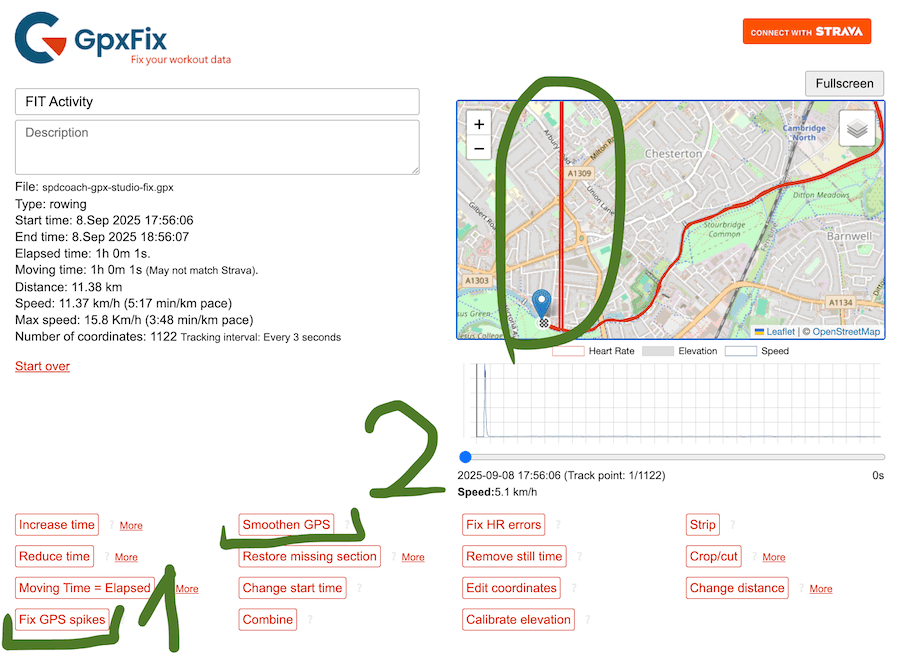
If your file has sharp spikes or still looks noisy after manual fixes, use GpxFix (Fix GPS spikes first, then Smoothen GPS if needed) to clean the signal before final export.
- Upload to GpxFix: Open gpxfix.eu and drop your GPX.
- Fix spikes first: Click Fix GPS spikes to remove sudden jumps; download the result.
- Smooth if it is still jittery: Click Smoothen GPS for gentle smoothing only if needed.
Generate a HUD from fixed GPXFix the route in gpx.studio, clean spikes in GpxFix, and drop the GPX into GpxOverlay for aligned widgets.
View Pricing Options