How to Extract GPX Data from GoPro and Insta360 Videos
Modern action cameras like GoPro and Insta360 often record GPS and other sensor data directly into the video file. To use this data with GpxOverlay, you first need to extract it into a GPX file. This tutorial will guide you through the process using a free online tool.
Steps to Extract GPX from Your Video File:
- Visit the Tool: Open the Telemetry Lite for GoPro tool in your web browser.
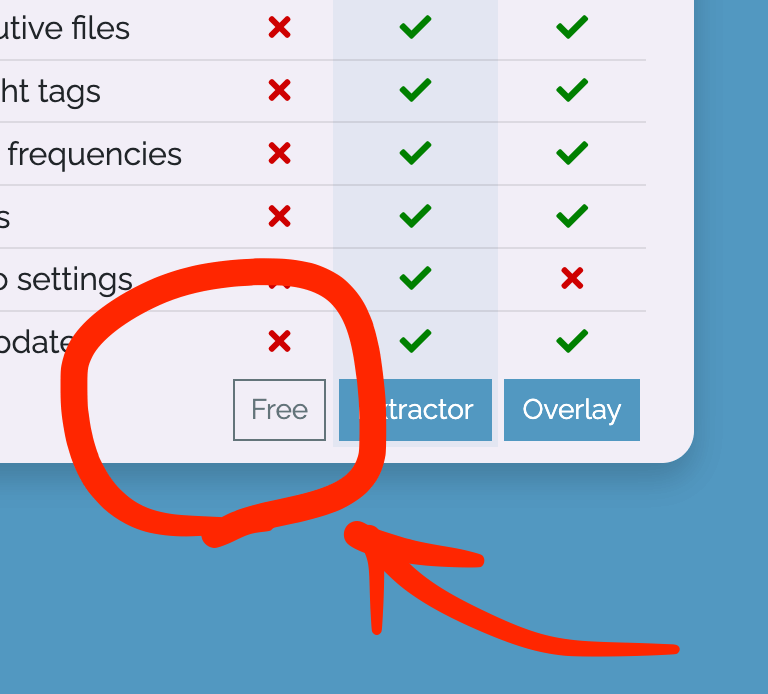
- Open the Extractor: In the "Lite" column, click on the "Free" button to open the telemetry extractor tool.
- Select Your Video: Click on the "CHOOSE FILE" button and select the video file from your computer. The tool works with files from GoPro (HERO13, HERO11, HERO10, HERO9, HERO8, HERO7, HERO6, HERO5, Max, Fusion) and Insta360 cameras. Your video is not uploaded to a server; all processing is done in your browser.Note: GoPro HERO12 does NOT have built-in GPS.
- Wait for Processing: The tool will read your file and process the telemetry data. This may take a few moments depending on the size of your video.
- Select Format: Once processed, you will see several options. In the "Select the format" section, choose "GPX".
- Download the GPX File: The tool will generate a GPX file and your browser will begin to download it. Save this file to your computer so you can upload it to GpxOverlay.
Video Tutorial:
Important Considerations:
- The accuracy of the GPS data depends on the quality of the signal at the time of recording.
- Some older cameras may not have GPS, or it may need to be enabled in the settings. For example, the GoPro HERO12 does not have a built-in GPS.
- In GoPro cameras you have to wait for the GPS to make a connection before you start recording. This may take up a few seconds (or more).
Ready to Overlay Your Video Data?Now that you have your GPX file, upload it to GpxOverlay and create stunning data overlays for your videos.
View Pricing Options