
How to Merge GPX Files Into One Activity
2026-09-13 • Marcin Zaremski
Why I created this free tool
I stopped at a store during a bike ride and left my bike computer on the bike with auto-stop enabled. When I came back, the activity had already been stopped and saved. I started a new recording and finished the ride, but one ride was now split across two GPX files.
I wanted to join them without editing GPX XML by hand, so I created the free GPX Merge Tool. It also helps when a battery dies, a device restarts, or an activity is saved accidentally during a ride, run, or hike.
How to merge your GPX files
- Export each part of the activity as a
.gpxfile. - Open the GPX Merge Tool.
- Add the files one at a time.
- Review their order and any time, location, or sensor-data warnings.
- Download the merged file.
Files are sorted by timestamp, so filenames and upload order do not matter.
What to check before merging
The tool checks whether the recordings appear to continue from one another. Pay attention to:
- Time gaps or overlaps: An overlap can indicate a duplicate file.
- Location gaps: The end of one file should be close to the start of the next.
- Missing sensor data: If a file lacks heart rate, power, or cadence, that metric will have a gap.
A warning does not always mean the merge is wrong. In my case, the time gap at the store was expected.
What the merged file contains
The original GPS points, timestamps, elevation, and available sensor data are preserved. Unrecorded pauses remain as gaps, while each source file stays in a separate track segment.
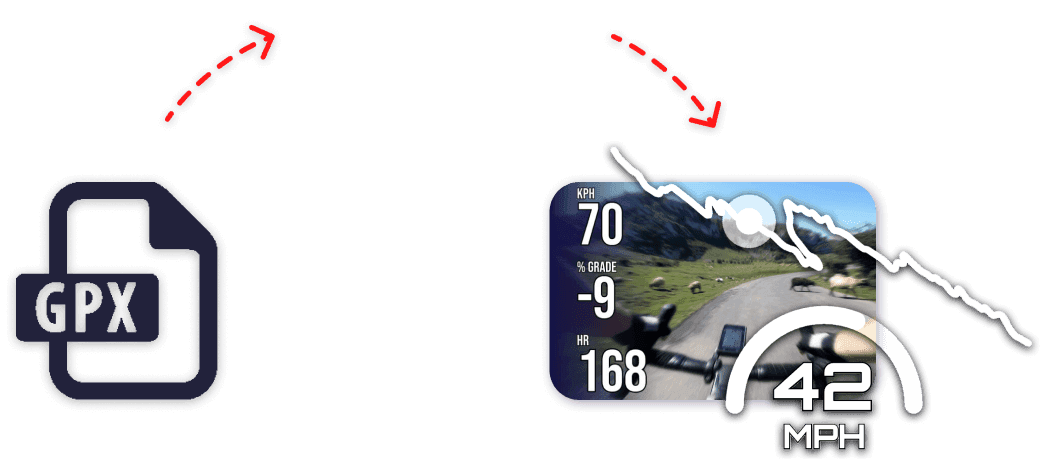
Everything runs locally in your browser, so your location data is not uploaded to a server. You can use the result as one activity or upload it to GpxOverlay to create a continuous data overlay for your video.